Twitter is my favorite social network. It is useful both for work and for fun: I read twitter often and post some tweets, too. In this post we’re going to see how to read information from Twitter about the logged user and how to interact with the Twitter API with a Universal Windows App (UWP). Because we’re lazy we’re going to use the Linq2Twitter library available on GitHub to make our life easier.
Configuring
The first step to start our work is registering the app in the Twitter Developer Portal.
 Without this step we cannot access the Twitter API. In order to register our app we need a Twitter account.
With our twitter account set-up we can go to https://apps.twitter.com/ where we register our app by clicking on “Create New App”.
Without this step we cannot access the Twitter API. In order to register our app we need a Twitter account.
With our twitter account set-up we can go to https://apps.twitter.com/ where we register our app by clicking on “Create New App”.
 After that, registering the application is as easy as compiling this form
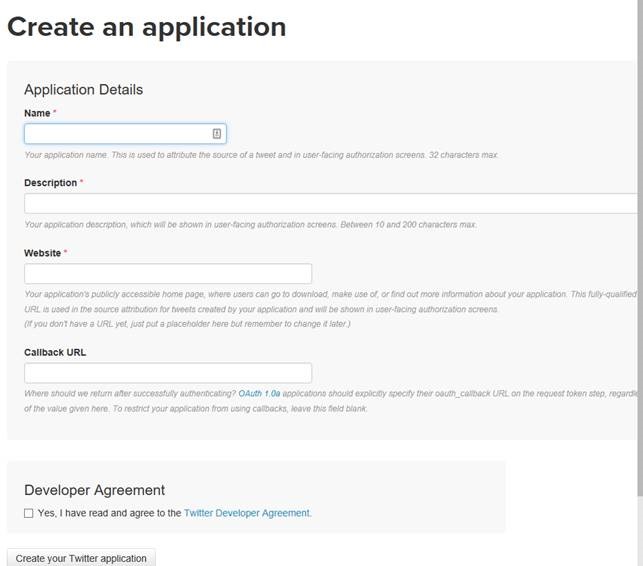 Name: the name of our application.
Description: a simple description of what our app can do.
Website: the reference website for our app.
Callback URL: the return address after a successful authentication. We do not need this in our example because we’re doing a UWP app.
At the end we agree with the “Developer Agreement” and click on “Create your Twitter application”.
If the process completes successfully we can manage our application settings in a page that looks like this (my app is called Buongiorno):
Name: the name of our application.
Description: a simple description of what our app can do.
Website: the reference website for our app.
Callback URL: the return address after a successful authentication. We do not need this in our example because we’re doing a UWP app.
At the end we agree with the “Developer Agreement” and click on “Create your Twitter application”.
If the process completes successfully we can manage our application settings in a page that looks like this (my app is called Buongiorno):
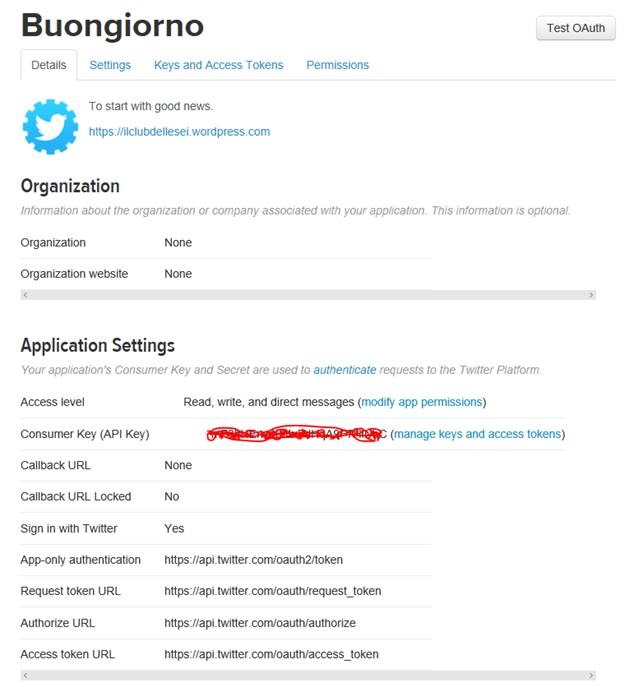 To make valid calls to Twitter API we need to use the Consumer Key (API Key) and the API Secret key. You can read the Consumer Key under the Application Settings section. To read the API Secret we need to click on “manage keys and access tokens”.
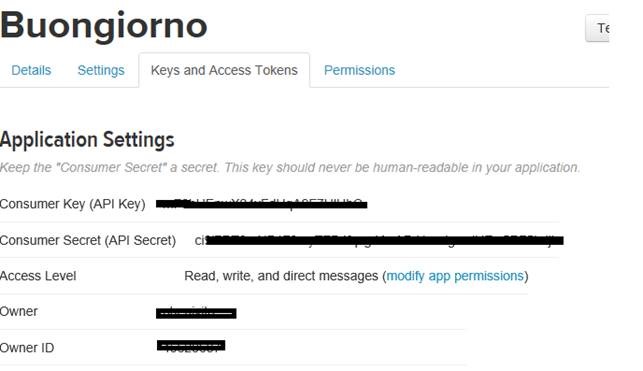 In this page we can read both API Key and Secret. We need to keep in mind that these values are sensitive information and not to publicize them because other (malicious) developers can impersonate our application and do harmful things.
Now we’re finished with the Twitter website and we can go to write code!
In this page we can read both API Key and Secret. We need to keep in mind that these values are sensitive information and not to publicize them because other (malicious) developers can impersonate our application and do harmful things.
Now we’re finished with the Twitter website and we can go to write code!
Coding
We open a new UWP project with Visual Studio.
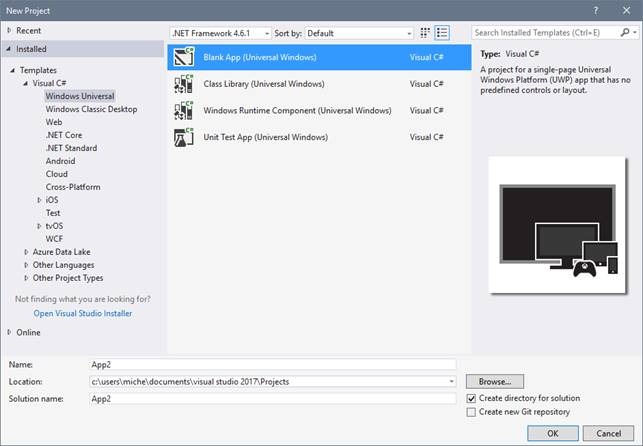 We can give any name and then Visual Studio prepares for us a blank app.
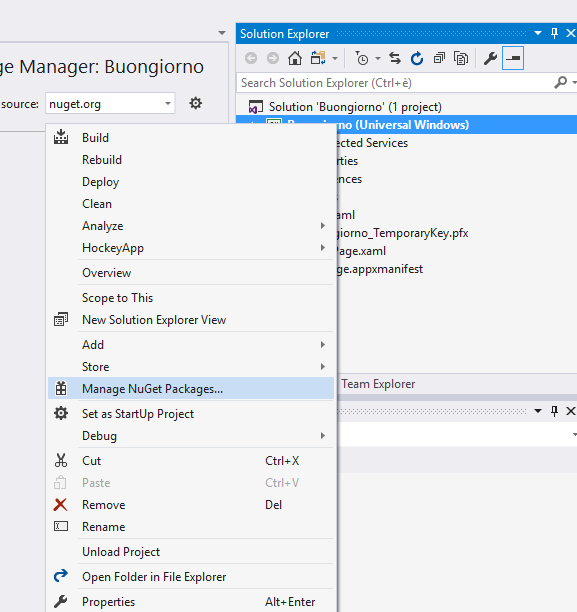
The next thing to do is to import the Linq2Twitter library available as a NuGet package. Right-click on the project in the Solution Explorer and click Manage NuGet Packages.
We can give any name and then Visual Studio prepares for us a blank app.
The next thing to do is to import the Linq2Twitter library available as a NuGet package. Right-click on the project in the Solution Explorer and click Manage NuGet Packages.
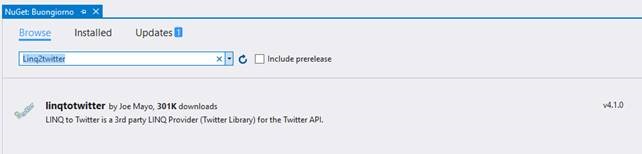
 Next we search for “Linq2Twitter” in the browse section and download the package with the download arrow icon on the right.
 Visual Studio will prompt us to Accept licenses and dependencies. We click Accept and move on. The NuGet system will take care of all the download process and at the end we’ll be ready to use the library without any other click.
In the MainPage.xaml we make some basic UI to trigger the Linq2Twitter library and display the logged user timeline.
Our goals are:
· Retrieve user timeline
· Post a tweet.
Visual Studio will prompt us to Accept licenses and dependencies. We click Accept and move on. The NuGet system will take care of all the download process and at the end we’ll be ready to use the library without any other click.
In the MainPage.xaml we make some basic UI to trigger the Linq2Twitter library and display the logged user timeline.
Our goals are:
· Retrieve user timeline
· Post a tweet.
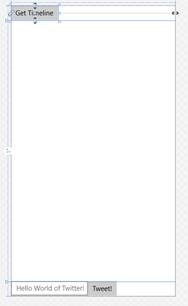 The XAML code to achieve this layout is the following:
[code language=“xml”]
The XAML code to achieve this layout is the following:
[code language=“xml”]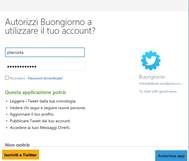 At the end of the authentication process in our C# code the auth reference will hold the OAuthToken and OAuthTokenSecret in the CredentialStore variable that we save locally for future use and avoid this pop-up every API call.
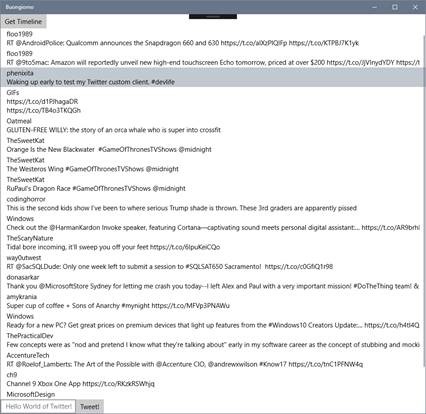
The result will be something like that:
At the end of the authentication process in our C# code the auth reference will hold the OAuthToken and OAuthTokenSecret in the CredentialStore variable that we save locally for future use and avoid this pop-up every API call.
The result will be something like that:
 The btnSendTweet event handler implements our logic to write a tweet:
[code language=“csharp”]
private async void btnSendTweet_Click(object sender, RoutedEventArgs e)
{
if (string.IsNullOrWhiteSpace(txtUserTweet.Text)) return;
try
{
var tweetText = txtUserTweet.Text;
UniversalAuthorizer auth = await Authenticate();
using (var twitterCtx = new TwitterContext(auth))
{
await twitterCtx.TweetAsync(tweetText);
await new MessageDialog(“You Tweeted: “ + tweetText, “Success!”).ShowAsync();
}
}
catch (Exception ex)
{
await new MessageDialog(ex.Message, “Ops!”).ShowAsync();
}
}
[/code]
As always we need to authenticate and then call the TweetAsync method of TwitterContext to post our tweet.
The btnSendTweet event handler implements our logic to write a tweet:
[code language=“csharp”]
private async void btnSendTweet_Click(object sender, RoutedEventArgs e)
{
if (string.IsNullOrWhiteSpace(txtUserTweet.Text)) return;
try
{
var tweetText = txtUserTweet.Text;
UniversalAuthorizer auth = await Authenticate();
using (var twitterCtx = new TwitterContext(auth))
{
await twitterCtx.TweetAsync(tweetText);
await new MessageDialog(“You Tweeted: “ + tweetText, “Success!”).ShowAsync();
}
}
catch (Exception ex)
{
await new MessageDialog(ex.Message, “Ops!”).ShowAsync();
}
}
[/code]
As always we need to authenticate and then call the TweetAsync method of TwitterContext to post our tweet.
TL;DR
In this post we learned how to do a simple custom Twitter client that reads our timeline and can write tweets. The main points were to register our app in the Twitter Developer portal, leverage the Linq2Twitter API to do the OAuth authentication and save the tokens in the local storage and make calls to Linq2Twitter API to search for timeline and to tweet. If you want to learn more, you can refer to the GitHub project of Linq2Twitter (https://github.com/JoeMayo/LinqToTwitter) and the Twitter API official documentation (https://dev.twitter.com/docs). The source code of this example is available on my GitHub (https://github.com/phenixita/uwp-simpletwitter). If you liked this post please share!