In this blog post we’re going to lay the basis for future posts about Xamarin Forms. We’ll explore briefly what’s Xamarin Forms and why it’s so powerful. Then we’ll talk about .NET Standard and we’ll understand why it’s a very big achievement for the .NET ecosystem.
Xamarin Forms
Xamarin Forms is an API to develop cross-platform apps for iOS, Androind and Windows from a single, shared C# codebase. It’s not a one-size-fits-all technology but it’s very useful when code sharing is most important than custom UI for every platform. If we are Windows developers we’ll love Xamarin because it allows us to reuse all our hard learned skills like XAML, binding, MVVM and so on. If we need device specific features we can access them, too.
.NET Standard
The .NET Standard is a formal specification of .NET APIs that are intended to be available on all .NET implementations. The motivation behind the .NET Standard is establishing greater uniformity in the .NET ecosystem, enabling developers to produce portable libraries that are usable across .NET implementations, using this same set of APIs. We can look at .NET Standard as a specification of .NET APIs that make up a set of contracts. These contracts are implemented in each .NET implementation. This enables portability across different .NET implementations, allowing our code to run everywhere.
A fresh start
Before getting started, make sure you’ve run the Visual Studio Installer and have upgraded to the latest stable release of Visual Studio. At the time of writing I have this setup:
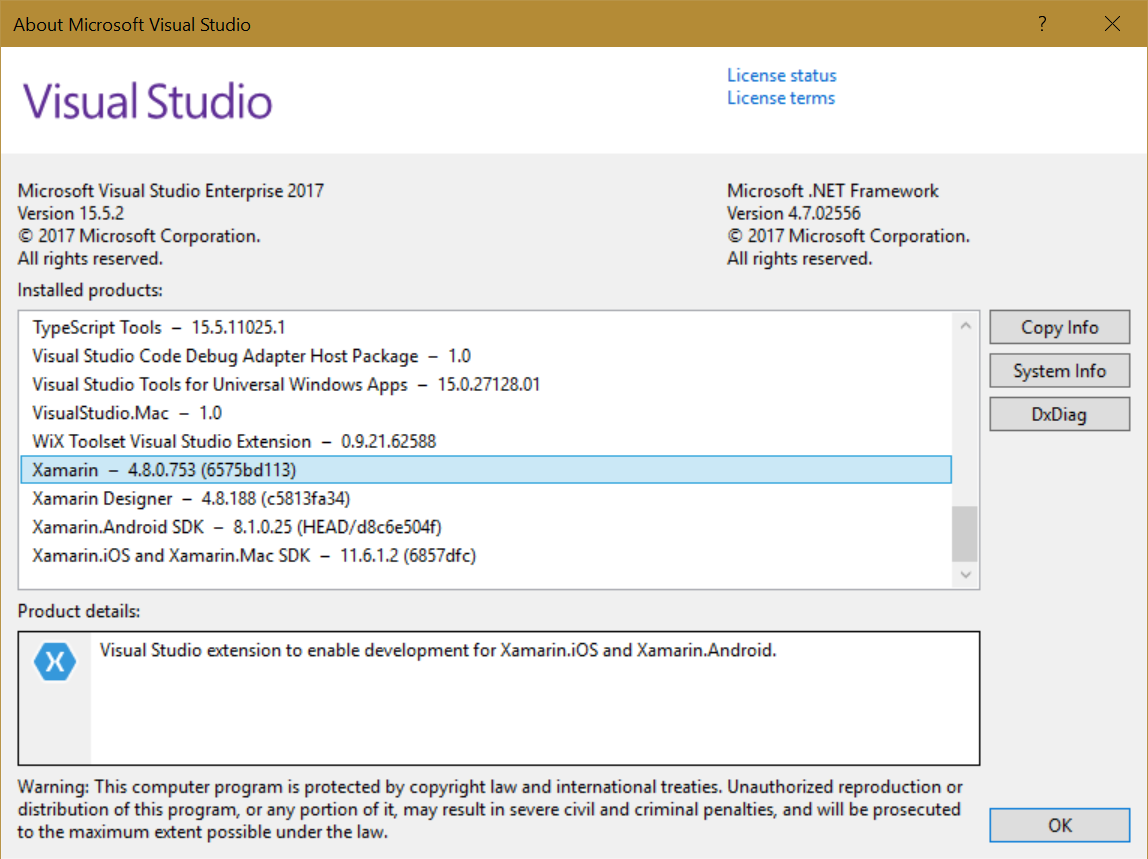
Visual Studio version The first step to create a cross-Platform Xamarin Forms app is to create a new Project with Visual Studio.
- File
- Project
- Visual C# -> Cross-Platform
- Cross-Platform App (Xamarin.Forms)
- We give a name to the Project (GettingStarted) e press OK.
Screenshot_1Screenshot_2
When we press OK a new window appears. We choose blank-app as a template, Xamarin.Forms as UI Technology and .NET Standard as Code Sharing Strategy (read here about Shared Projects).
Screenshot_3
When we hit OK Visual Studio works for a while and prepares a new solution for us.
Anatomy of a cross-Platform solution
The new solution is composed by 4 projects:
- The shared code Project (red rectangle). The output of this Project is a dll that can be used in every implementation of the .NET Standard version of our choice (.NET Standard 2.0 is the default setting). We want the big part of our code inside this Project to minimize differences between the three flavors of our app.
- The Platform-specific projects (Android, iOS, Windows). The output of these projects is the app for the specific target Platform. In these projects we implement specifc functions / UI / services for the target device; to start a phone call, for example, the code is different for every OS and we need to write our code for each platform and not in the shared Project.
Screenshot_4
To check that everything is ok we try to build and run the Android version of the App in an emulator. We set the Android Project as the Startup Project with right click in the Soltion Explorer and then Set as Startup Project.
Screenshot_5
We choose our favourite Anroid Virtual Device (AVD - I created a custom configuration) and then we press Play/Run.
Screenshot_6
After compiling and launching the AVD, Visual Studio will deploy and run the app.
Screenshot_7
We can do the same thing with the other two device specific projects. Keep in mind that to build the iOS Project you need a Mac in your network. It’s done!
TL; DR
In this post we created a Xamarin Forms Project with the Visual Studio template, we learned the purpose of Xamarin Forms and .NET Standard. Now we have the basics to develop the App of our dream. In the future posts we’ll evolve this app introducing MVVM and other concepts.
Reference
Xamarin official website (https://developer.xamarin.com/) Microsoft documentation (https://docs.microsoft.com/en-us/dotnet/standard/net-standard)